
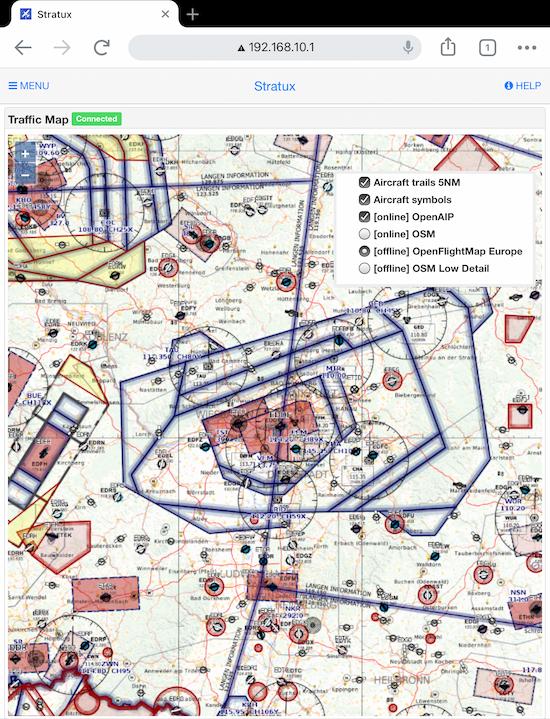
How to Install VFR Charts
Add Open FlightMap Europe or US VFR Sectional Charts to Stratux
Stratux can display VFR charts directly in its web interface. This guide shows how to install Open FlightMap for Europe or VFR Sectional Charts for the United States.
Open FlightMap Europe
Free VFR charts covering most of Europe with airspace, airports, and terrain information.
Open FlightMapUS VFR Sectional Charts
FAA VFR sectional charts for the United States, updated regularly.
FAA ChartsDownload Chart Files
Visit the Open FlightMap website (openflightmaps.org) and download the MBTiles format for your region. For US charts, download from the FAA website or use pre-packaged Stratux chart files.
Connect to Stratux
Power on your Stratux and connect to its WiFi network. Open a web browser and navigate to http://192.168.10.1 to access the web interface. For SSH access, use PuTTY (Windows) or Terminal (macOS/Linux) to connect to 192.168.10.1.
PuTTYAccess Settings Page
In the Stratux web interface, click on 'Settings'. Look for the 'Map/Charts' or 'Upload' section where you can add chart files.
Upload Chart Files
Click the upload button and select your downloaded .mbtiles file. The upload may take several minutes depending on the file size. Do not disconnect during upload.
Restart Stratux
After the upload completes, restart your Stratux to load the new charts. You can do this from the Settings page or by power cycling the device.
View Charts
Navigate to the 'Map' tab in the Stratux web interface. You should now see the VFR charts with your position and traffic overlaid.
- 4Boot up your Stratux.
- 5Stratux' WiFi should appear in your Laptop's network section.
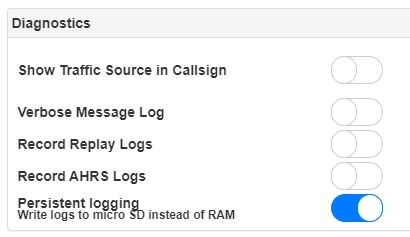
- 6Since the firmware version 026 or newer does no longer allow to write logs to micro SD card, a quick change in the Stratux web interface > Settings > Diagnostics is needed.
- 7Go to Diagnostics and set "persistent logging" to enabled. This will allow us to modify the firmware.
Tips
- Open FlightMap charts are updated quarterly - check for new versions regularly
- Download only the regions you need to save storage space
- The web interface map is for reference only - always use your primary EFB for navigation